IP Access Control
You can configure IP access control by selecting a specific user on the [User & Access Management > User] page and clicking [Action > Edit].
When IP access control is configured, the user can only log in from allowed IP ranges.
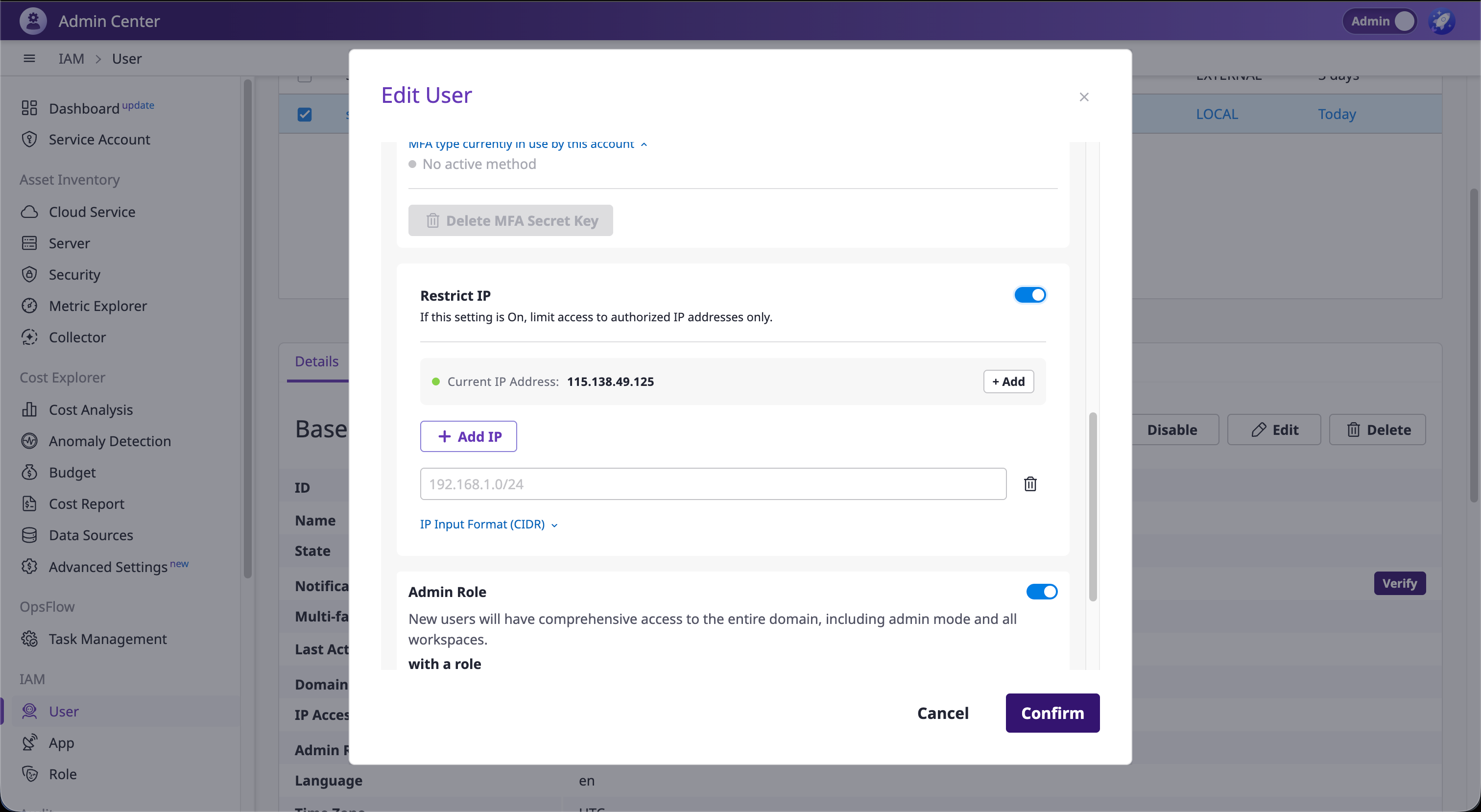
What is IP Access Control?
IP access control is a security feature that allows login only from permitted IP addresses or IP ranges configured for each user.
| Setting Status | Behavior |
|---|---|
| No IP list | Accessible from all IPs |
| IP list exists | Accessible only from allowed IPs |
Configuring IP Access Control
Select User
Select the user you want to configure IP access control for on the [User & Access Management > User] page.
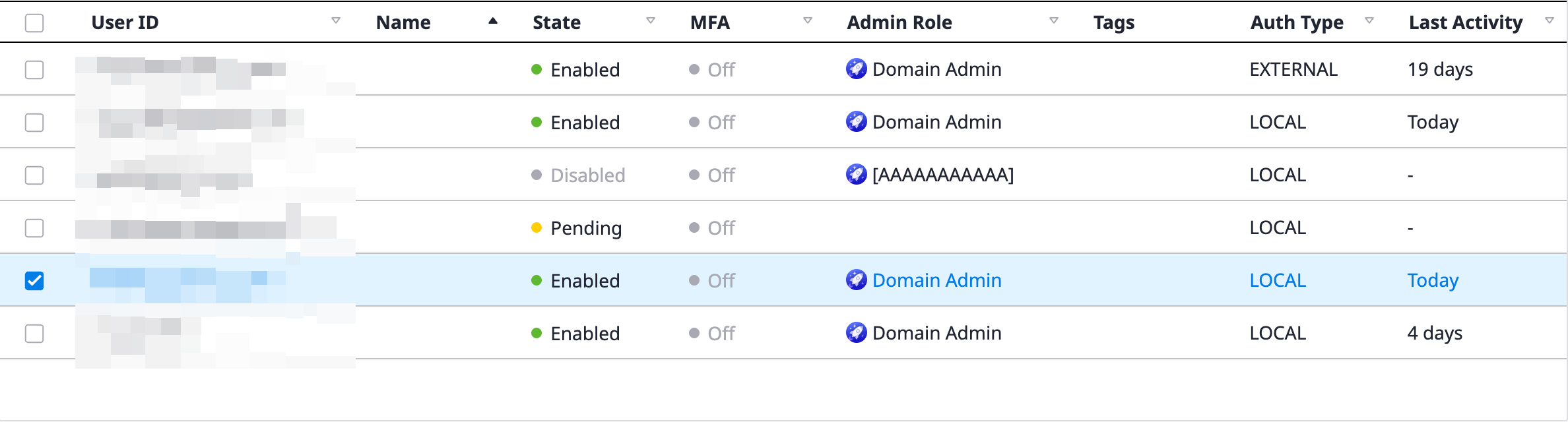
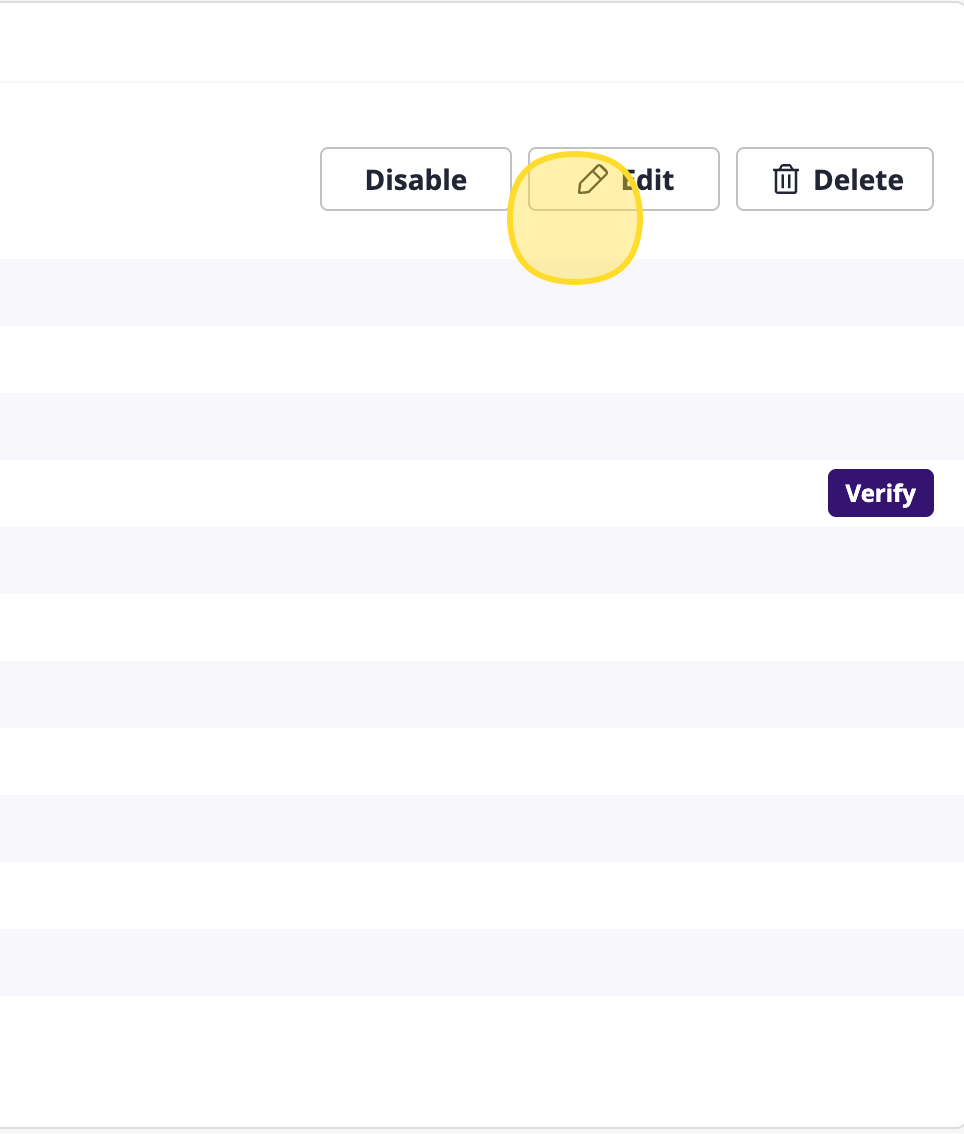
Click [Action > Edit]
Click [Edit] on the User Information tab.
Configure IP Access Control in Edit User Modal
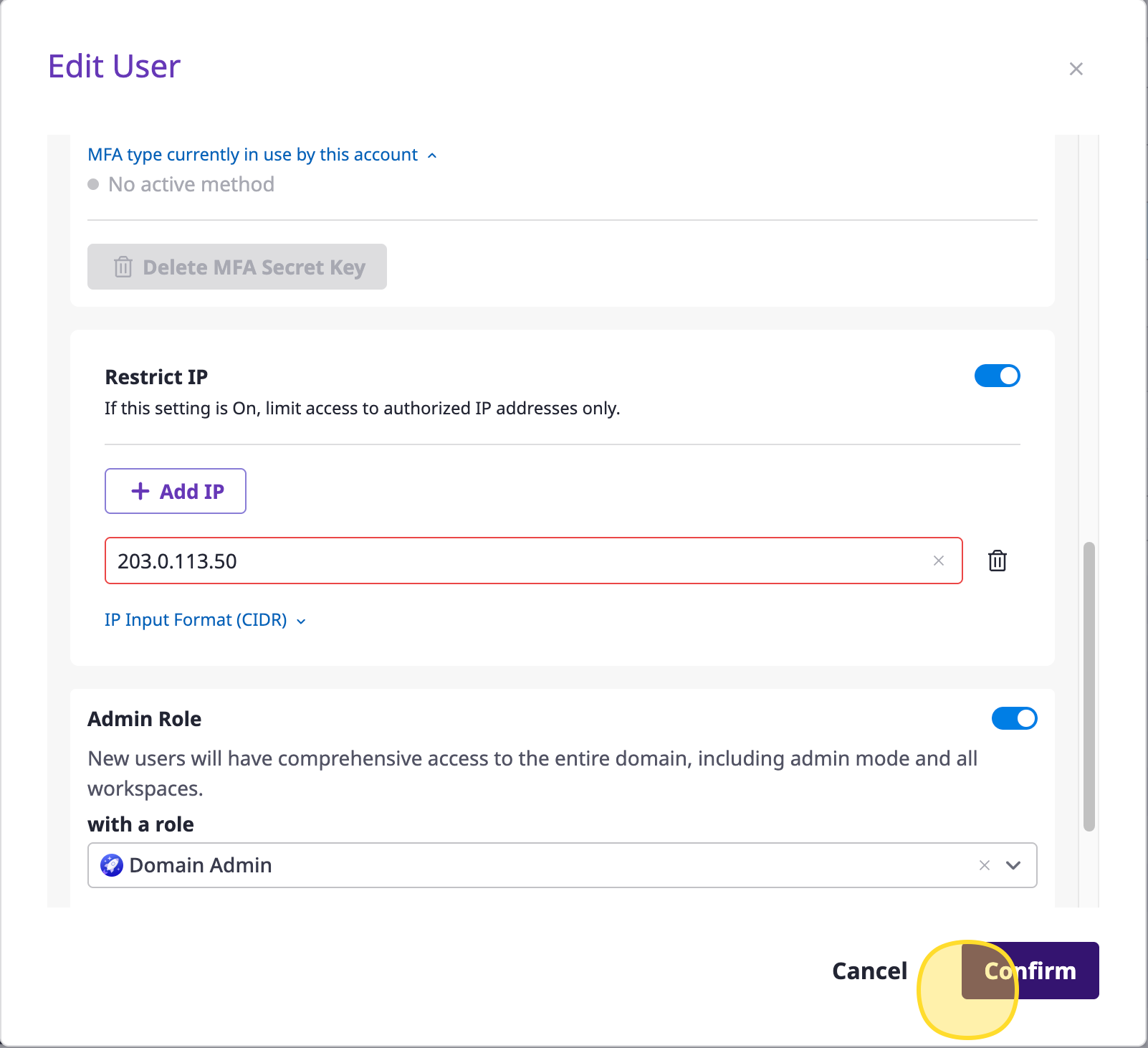
In the edit user modal, find the IP Restriction field and enter the IP address or IP range to allow.
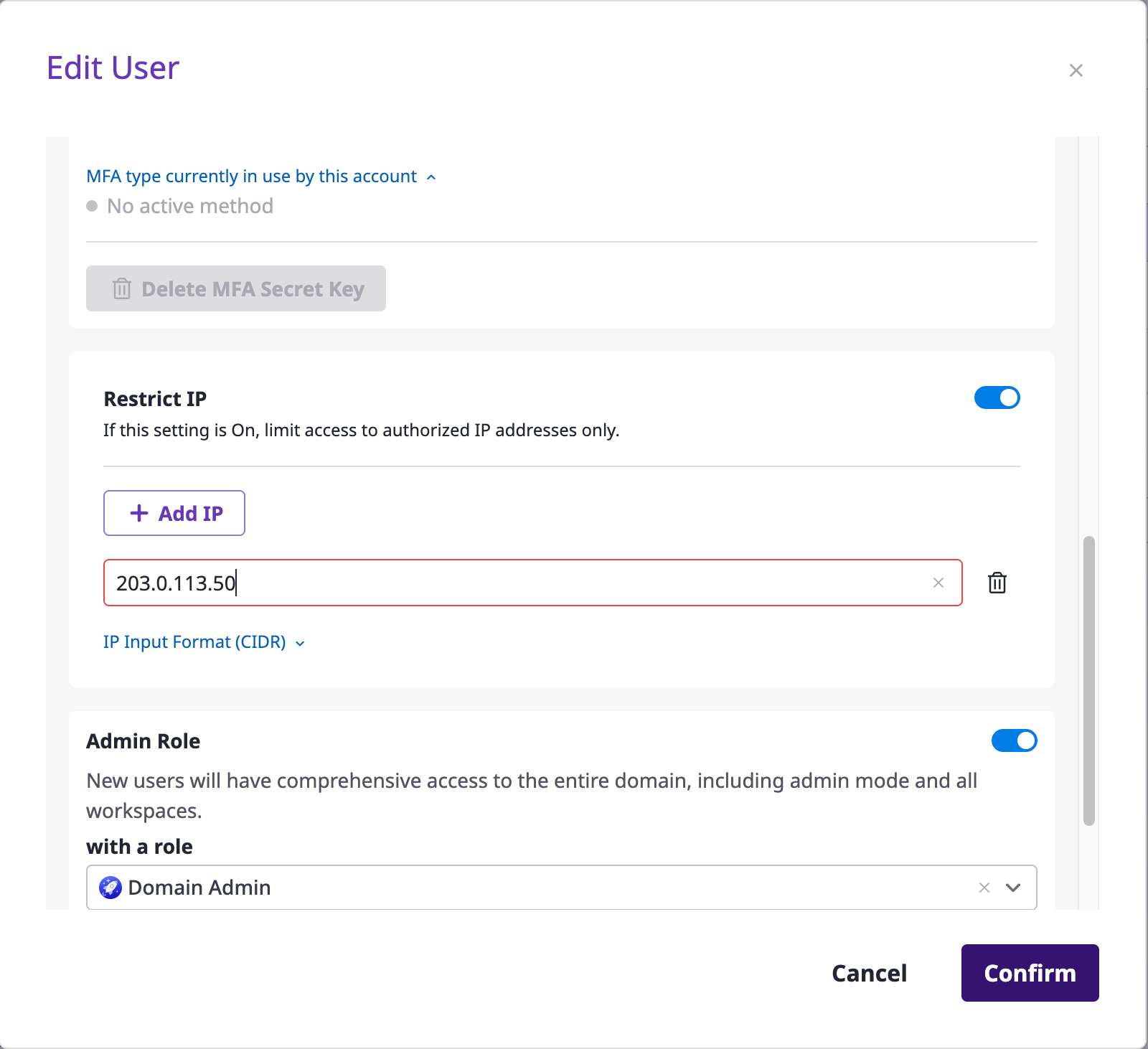
- Allow single IP:
203.0.113.50or203.0.113.50/32 - Allow IP range:
192.168.1.0/24(range from 192.168.1.0 to 192.168.1.255)
Save
Click the [Confirm] button to save the settings.
Removing IP Access Control
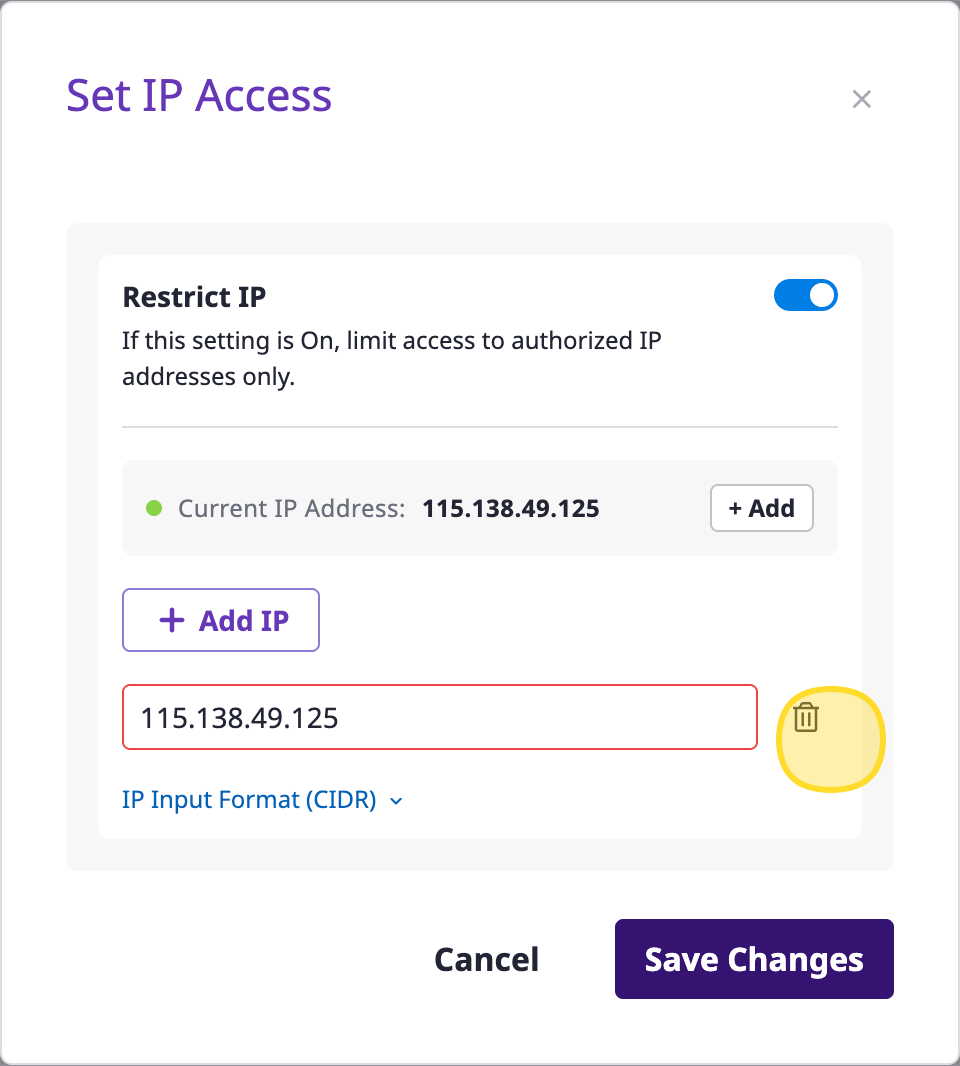
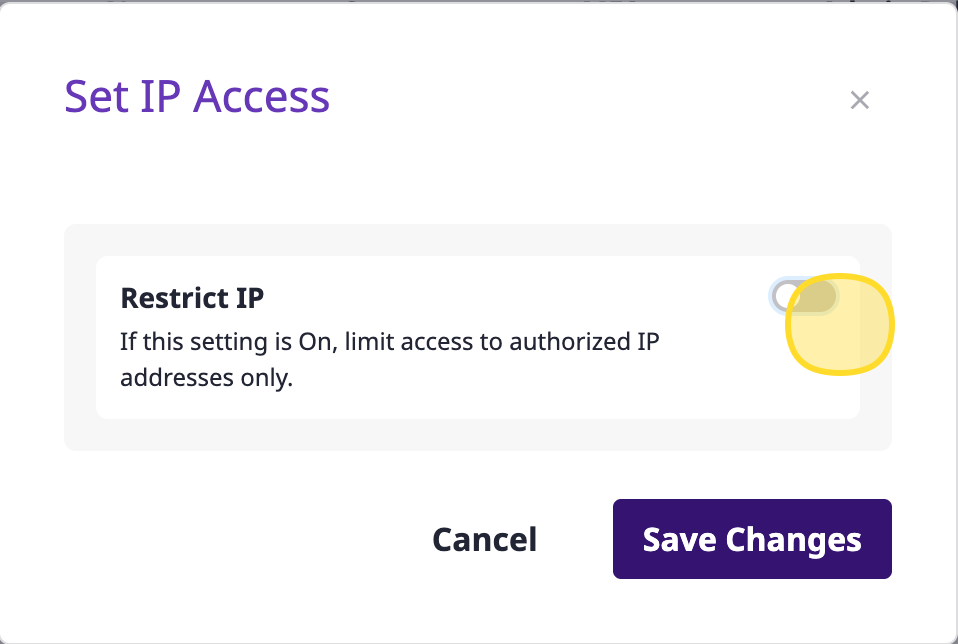
IP access control is disabled when all registered IP entries are deleted.
After removal, the user can log in from any IP address.
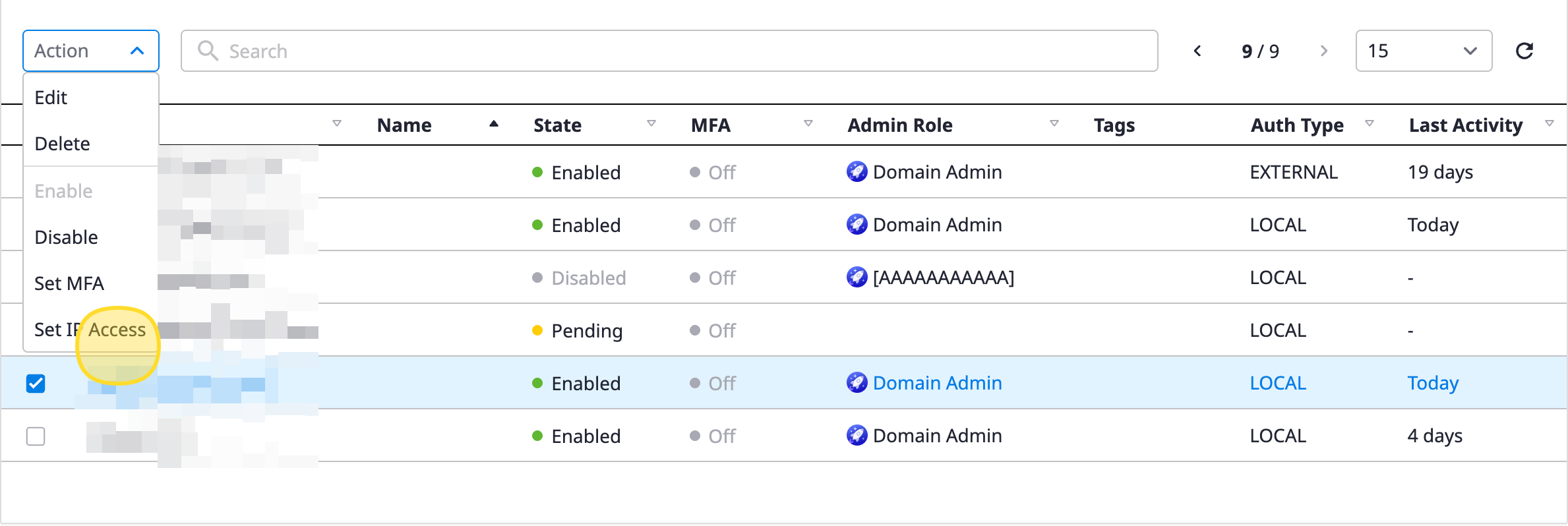
Select User and Click [Action > IP Access Settings]
Delete All Registered IP Entries in Edit User Modal
Turn Off IP Restriction Toggle
Save
Checking Your Current IP
Before configuring IP restrictions, you can check your current IP address.
Your current IP address is displayed in the IP Restriction field of the edit user modal, which you can reference when adding to the allow list.
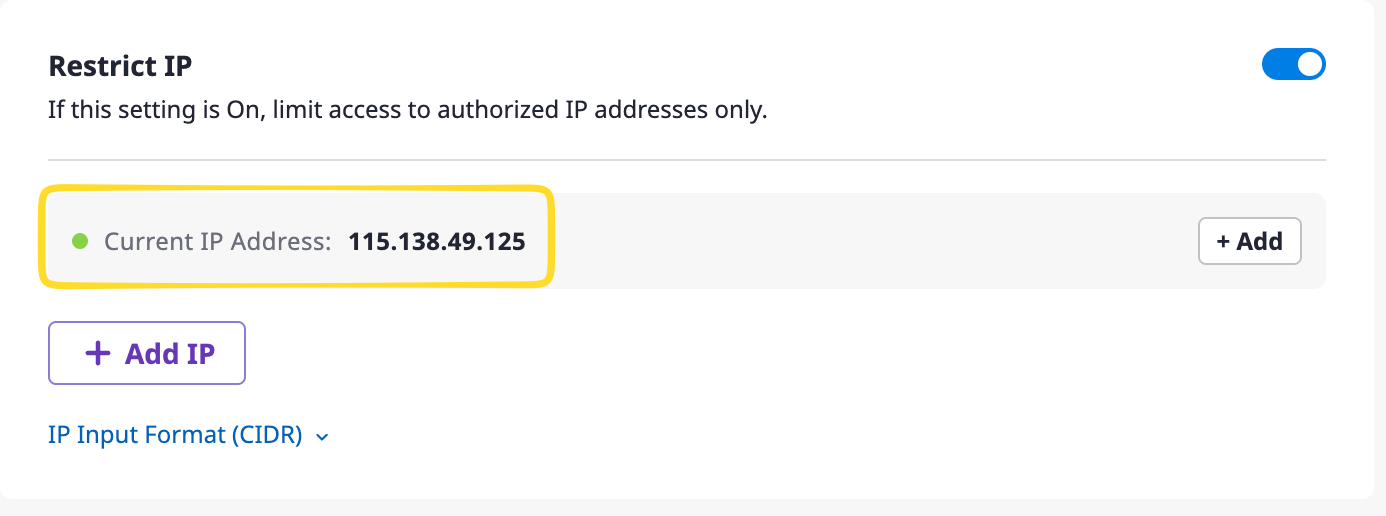
Login will be blocked from IPs not in the allow list.
Precautions
Precautions when configuring IP access control
- Login will be impossible if your own IP is not in the allow list.
- Only IPv4 CIDR format is supported. (IPv6 not supported)
- Changes take effect within 1 minute after configuration. (Cache refresh time)
- When using VPN or proxy, check your actual connection IP before configuring.
Error Message When Access is Blocked
When attempting to log in from a non-allowed IP, the following error message is displayed.
Access from your IP address is not allowed. (ip=xxx.xxx.xxx.xxx)In this case, contact your administrator to add the IP to the allow list.