Privacy Policy Management
You can create and manage privacy policies for your domain in the [Audit > Privacy Policy Management] menu.
Privacy policies are managed with three statuses: Draft, In Effect, and Expired. Only one policy can be In Effect at a time within a domain.
However, even Admins cannot access this menu if their role has Restricted Access that blocks the Audit menu.
Policy Status
Privacy policies follow the lifecycle below.
| Status | Description |
|---|---|
| Draft | The initial status of a newly created policy. Editing and deletion are available. |
| In Effect | The currently active policy. Only one policy per domain can be In Effect. When a new policy takes effect, the previous one is automatically expired. |
| Expired | An expired policy. Status changes are no longer possible. |
View Policy List
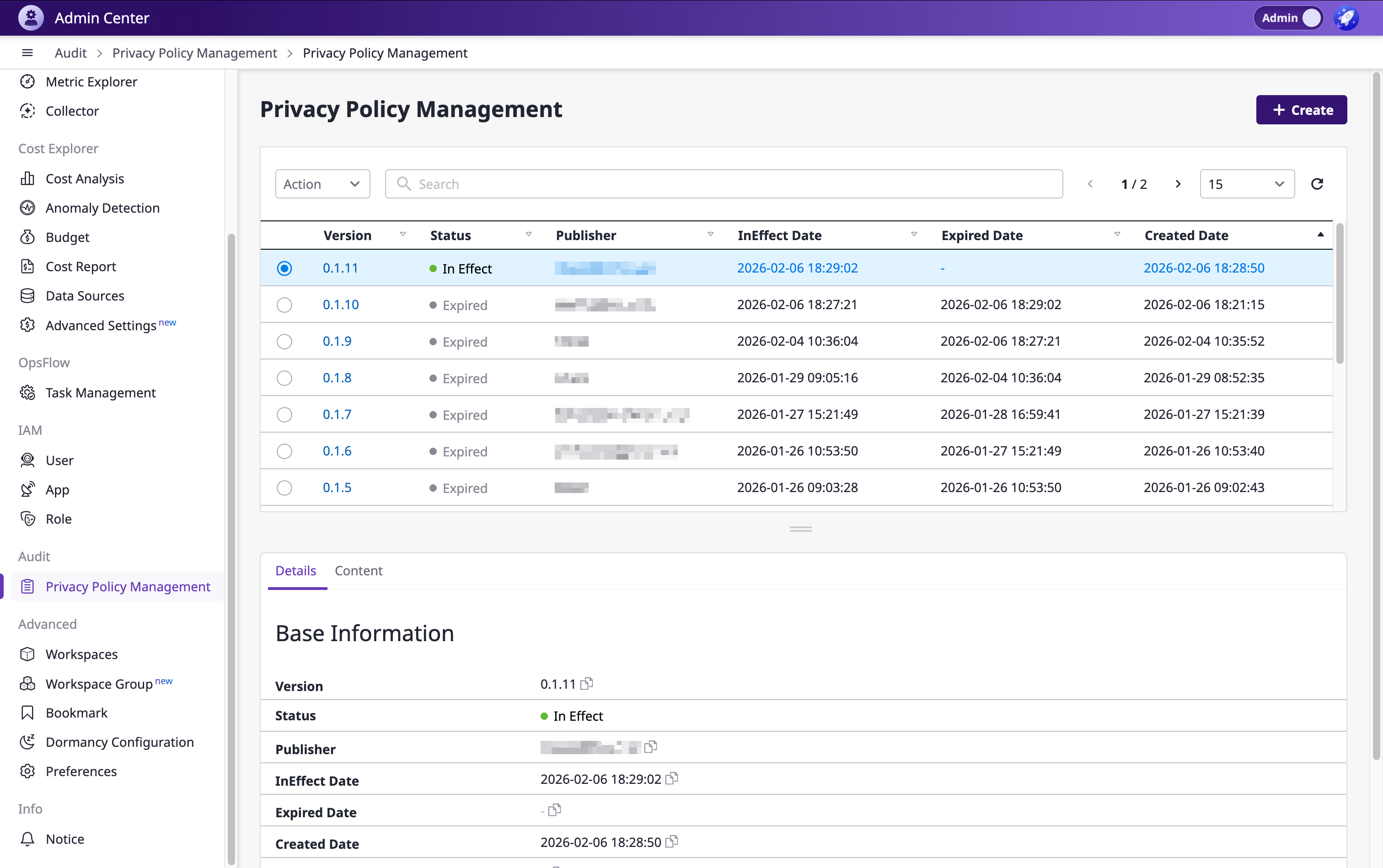
You can view all privacy policies on the policy list page.
The table includes Version, Status, Publisher, InEffect Date, Expired Date, and Created Date columns. Click any column header to sort.
Query Tag search is supported. Selecting a policy from the list displays the Detail tab and Content tab at the bottom.
Create New Policy
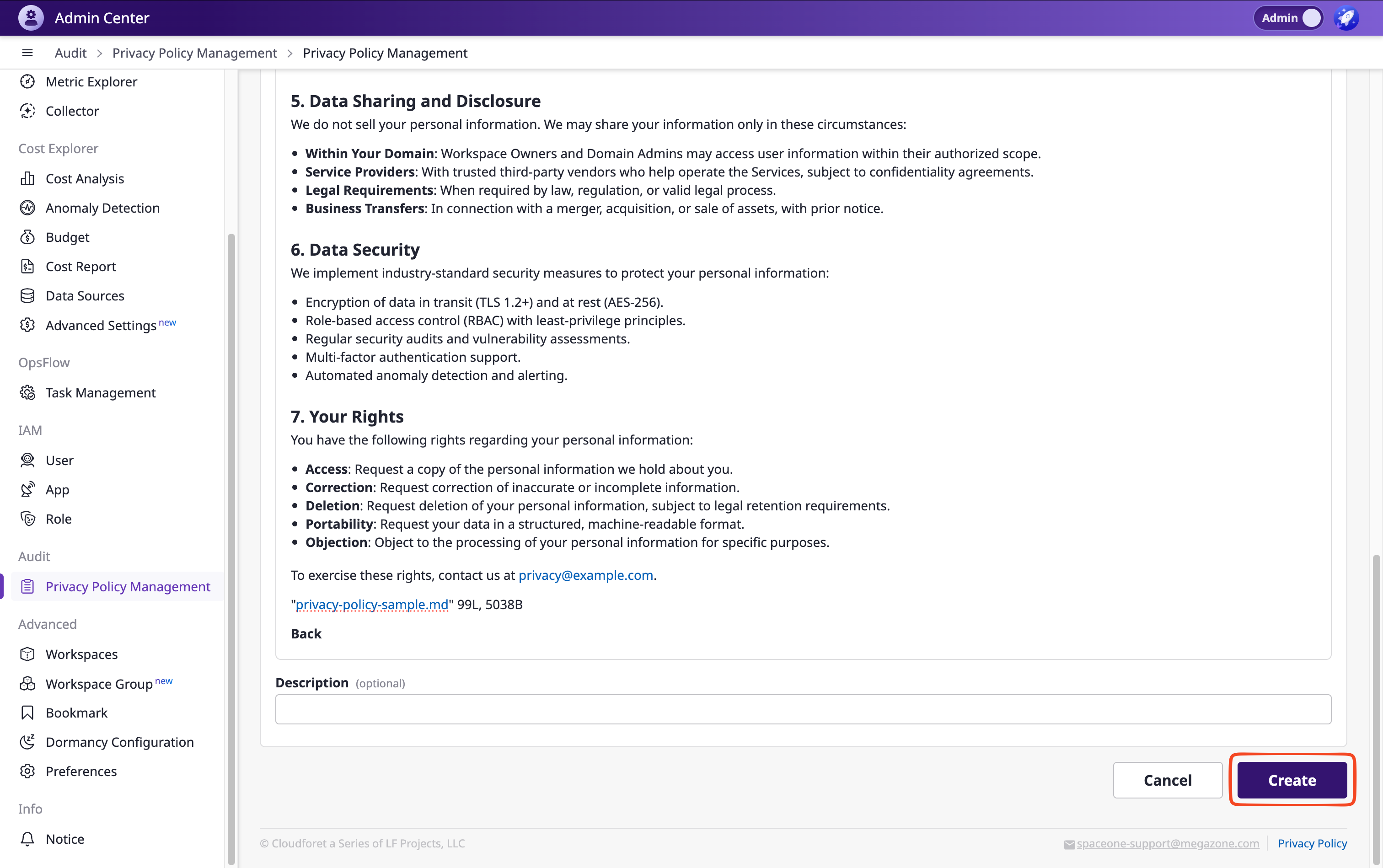
Click the [+ Create] Button at the Top to Navigate to the Creation Page
Enter the policy version.
- Only semantic versioning format (x.x.x) is allowed. (e.g.,
1.0.0,0.1.8) - The version must be higher than the latest existing version.
Write Content
Use the markdown editor to write the privacy policy content. Content is a required field.
- Auto Index: Select Heading 1 / 2 / 3 level to auto-generate a table of contents.
- File Attachment: Attach files if needed.
- Import Content: Copy content from an existing version.
Save Policy
Click the [Save] button to save the policy in Draft status.
Edit, Delete & Change Policy Status
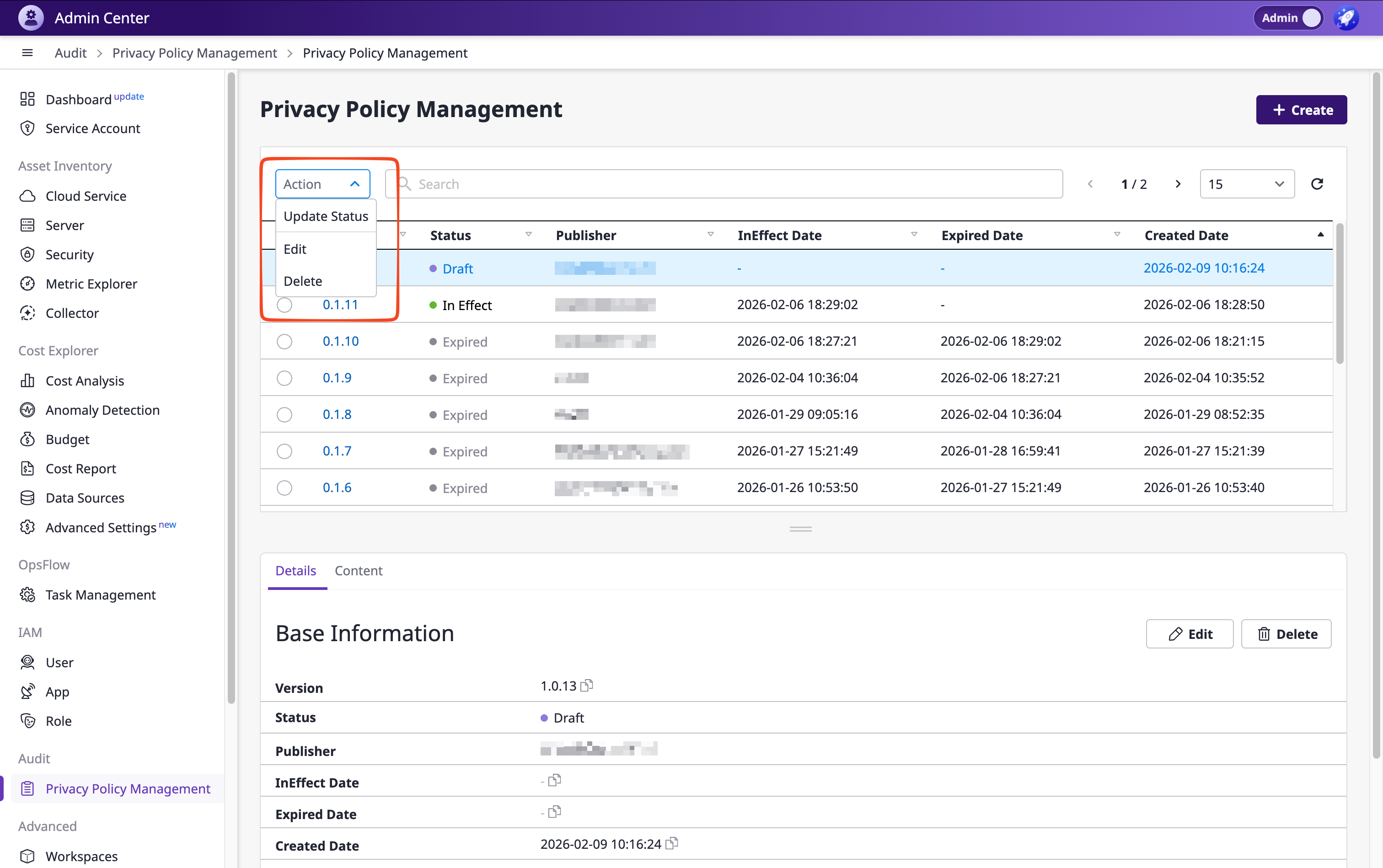
Select a policy from the list to view the [Edit], [Change Status], and [Delete] buttons in the detail tab at the bottom.
Edit Policy
Click the [Edit] button to modify the version, content, attachments, and more.
Change Policy Status
Click the [Change Status] button to open the status change modal.
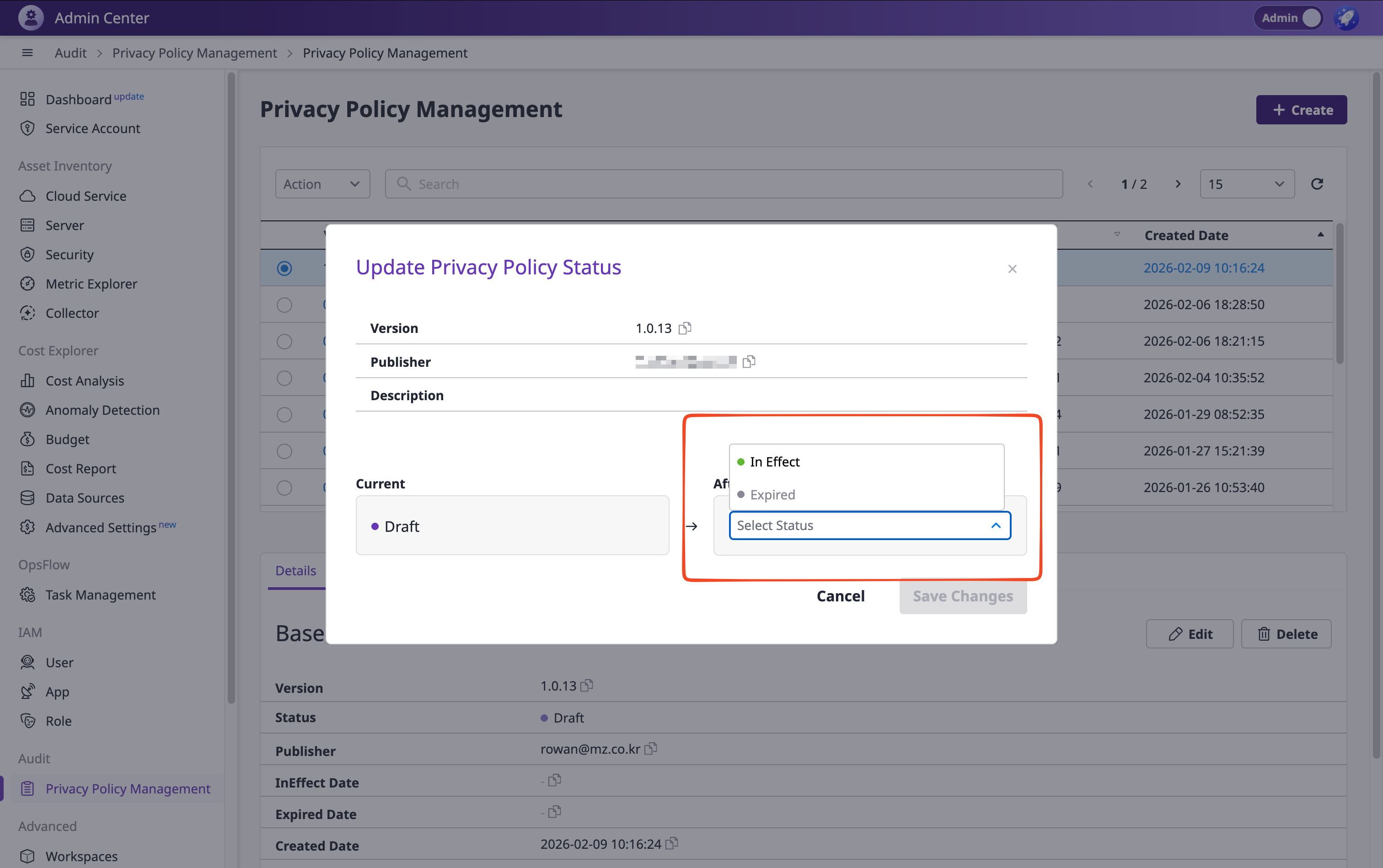
Change to In Effect
Changing a Draft policy to In Effect status will immediately publish the policy.
If there is an existing policy In Effect, it will be automatically Expired.
Change to Expired
You can change a Draft or In Effect policy to Expired status.
Delete Policy
Click the [Delete] button to display a deletion confirmation modal. The policy will be deleted after confirmation.
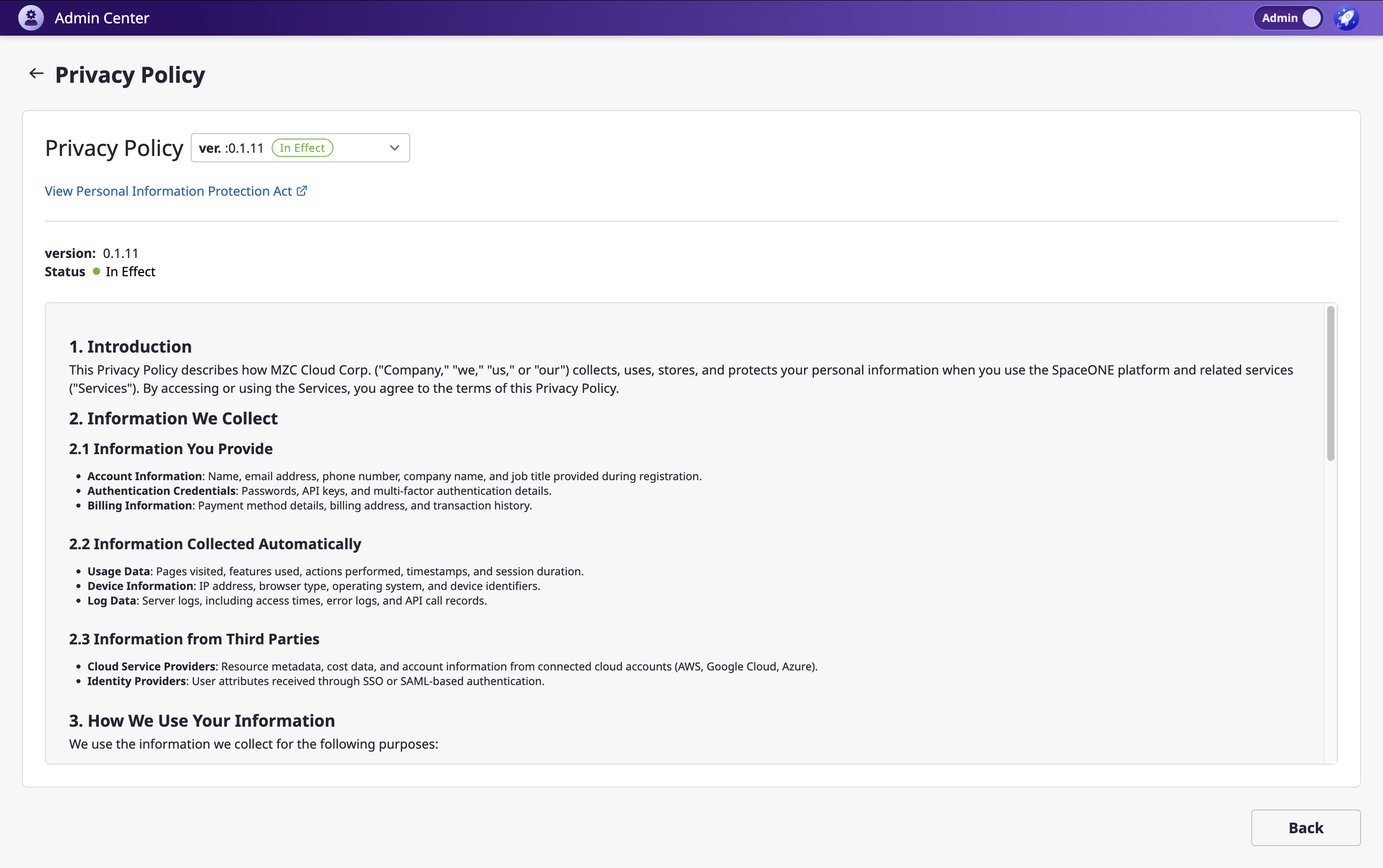
View Policy
Click the Privacy Policy button in the bottom footer (FNB) of Admin mode to open the policy viewing modal.
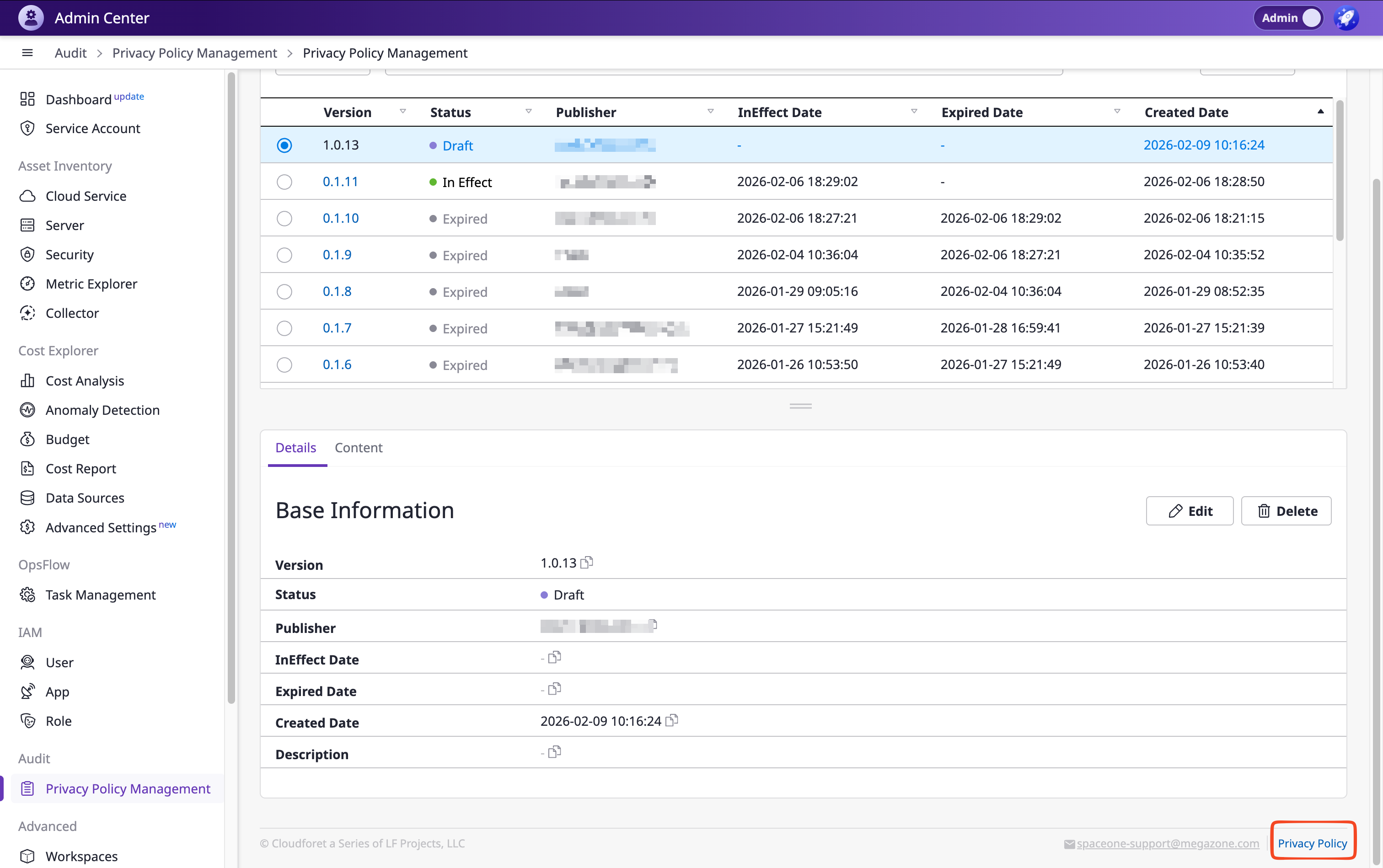
- Version Selection: Select In Effect and Expired versions from the dropdown to view. (Drafts are excluded)
- Table of Contents Navigation: For policies with auto-index enabled, clicking an item scrolls to the corresponding section.