Password Expiration Policy
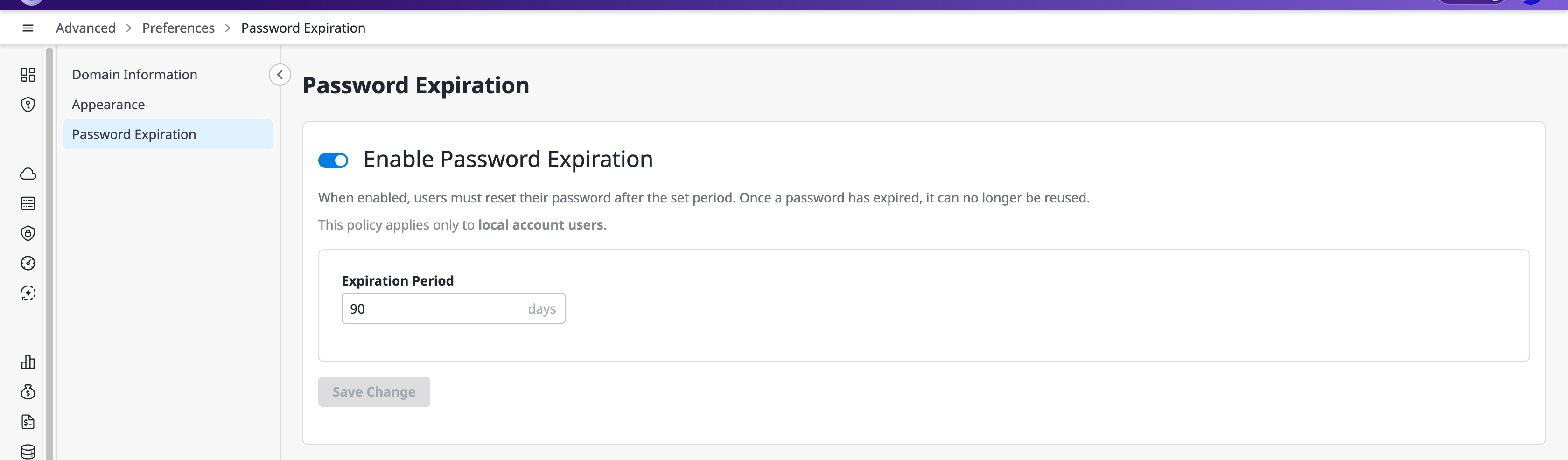
You can enforce a password expiration period for users across the domain in the [Advanced > Preferences > Password Expiration] menu.
When the policy is enabled, users must reset their password once the configured period has passed.
Users who sign in through external authentication such as Keycloak or Google are not affected.
Configure the Password Expiration Policy
Open [Password Expiration]
Go to [Advanced > Preferences] and select the [Password Expiration] tab.
Enable the Policy and Set the Expiration Period
Turn on [Enable Password Expiration] and enter the expiration period in days.
| Item | Value |
|---|---|
| Default | 90 days |
| Minimum | 1 day |
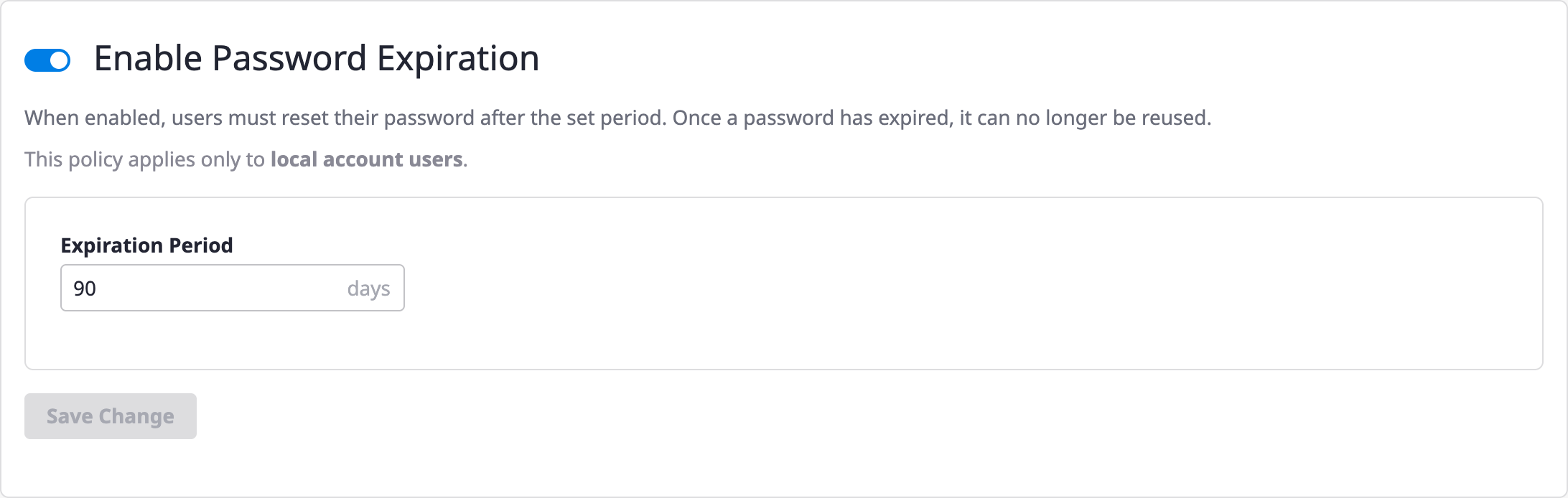
Changes are applied only after you click [Save Change]. Switching the toggle alone does not save the policy.
Check Password Expiration by User
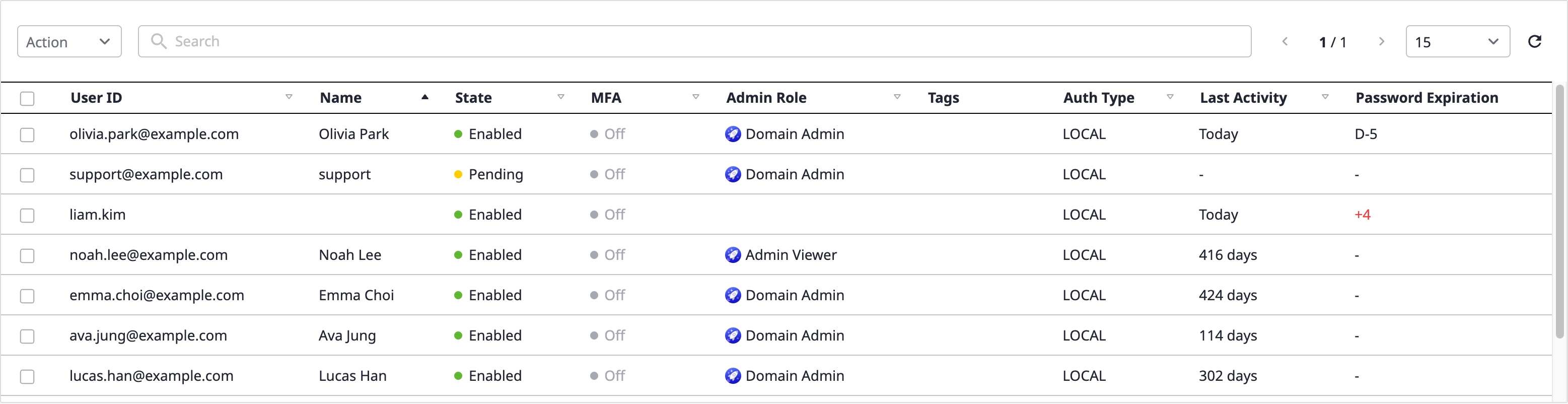
Once the policy is enabled, a [Password Expiration] column appears on the [IAM > User] page.
| Display | Meaning |
|---|---|
D-n | The password expires in n days |
+n (red) | The password expired n days ago |
- | External authentication users, or users who have never changed their password |
What Users Experience
Expiration Warning
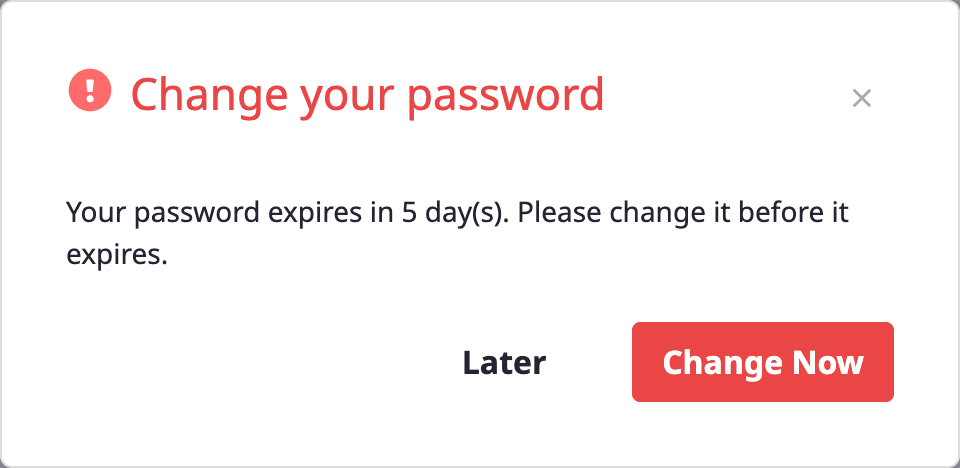
When 10 days or fewer remain before expiration, a [Change your password] notice appears after login.
Select [Change Now] to move to [My Page > Account & Profile] and change the password there, or [Later] to postpone.
After the Password Expires
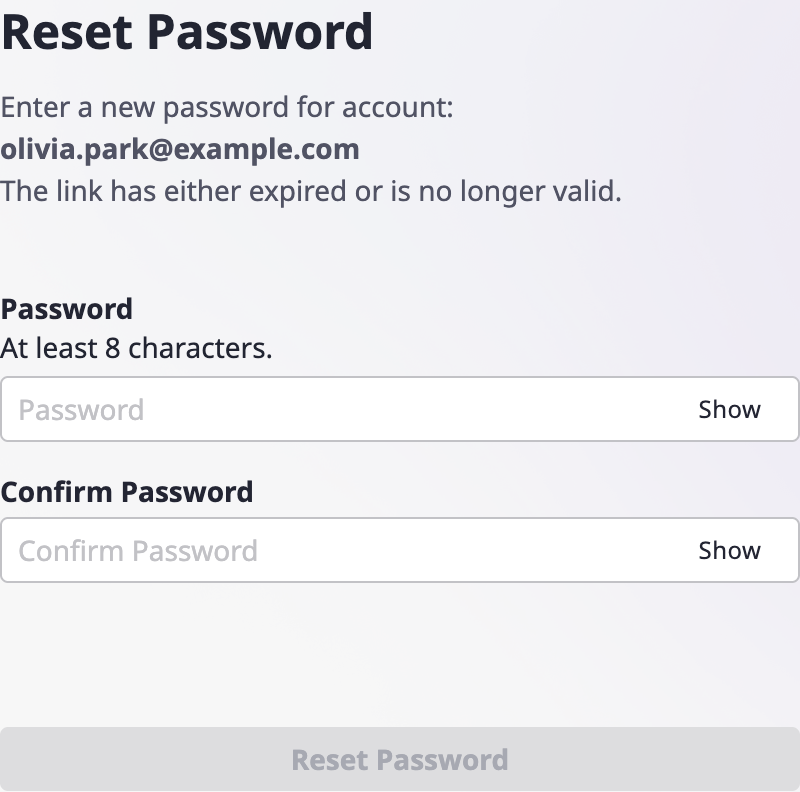
Once the password has expired, the user is redirected to the password reset page right after login and must reset the password before using the service.